10 min read
If you’ve ever worked with Salesforce Translation Workbench, you know the pain. Export STF files, clean them up manually, hand off Excel sheets for translation, create import files, hit errors, fix them, re-import — and repeat. For every environment.
I’ve been through this workflow on multiple projects, and it never gets less tedious. So when Anthropic launched Claude Cowork, I wanted to test it against the messiest Salesforce admin task I could think of. I set up my developer edition org with realistic translation data and walked through the entire workflow — STF cleanup, audit reports, import file creation, error handling — all with Cowork.
It handled it. Not perfectly, but enough to change how I’d approach translations going forward.
In this post, I’ll walk you through the five steps I tested — STF cleanup, audit reports, import file creation, error log parsing, and iterative fixes. I’ll show you real error messages, real file formats, and the honest limitations.
Let’s start with what Cowork actually is.
What Is Claude Cowork?
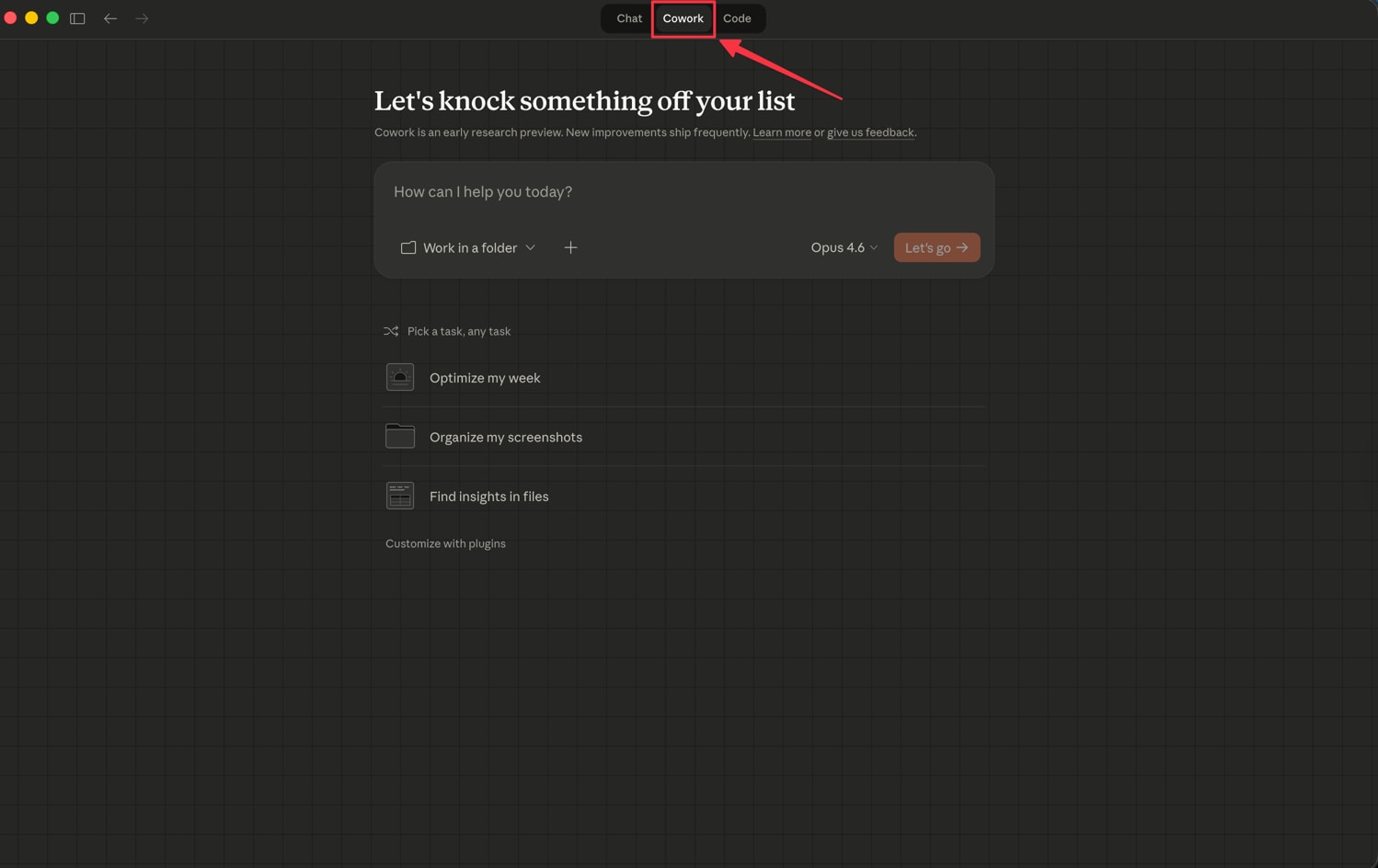
Claude Cowork is Anthropic’s desktop agent for non-developers. Think of it as Claude Code, but for knowledge workers — admins, analysts, consultants.
You give it access to a folder on your computer. It can read, edit, and create files in that folder. You describe a task, and it works through it step by step, checking in with you along the way.
It launched in January 2026 as a research preview on the Claude desktop app. Originally for Max subscribers, it’s now available on Pro plans ($20/month) and works on both macOS and Windows.
The key thing that makes it useful for this workflow: you can upload files, and Cowork processes them conversationally. Upload an STF file, ask it to clean up managed package items, and it does it. Upload an error log, ask it to fix the import file, and it tries.
That conversational loop is what makes it different from just writing a script.
The Translation Workflow Problem
There are two ways to handle translations in Salesforce. You can translate directly in the UI through Translation Workbench — selecting each component, typing the translated value, saving. Or you can export all the metadata that needs translation as an STF file, translate it externally, and import it back.
Quick note: you could also use Claude itself to do the actual translations — feeding it the English labels and getting back translated values. That’s a different use case entirely, and I’m not covering it here. This post is about using Cowork to manage the STF workflow around translations, not the translations themselves.
We’ll focus on the second approach — export and import. And if you’ve done it before, you know the steps:
- Export STF files from Translation Workbench
- Clean up the export — remove managed package items, unsupported elements
- Create an Excel sheet for the business team to provide translations
- Receive the translated Excel back
- Create an import STF file from those translations
- Import into Salesforce
- Hit errors
- Fix the errors, create a new version
- Re-import
- Repeat steps 7-9 until it works
That last part — the error-fix-reimport cycle — is where the real pain lives.
On past projects, I’ve gone through dozens of import attempts across environments. Version after version, each one fixing a different batch of errors that Salesforce throws at you one at a time.
The STF file format doesn’t help either. It’s a tab-delimited text file with keys like:
CustomField.Competitor_Analysis__c.Competitive_Advantage.FieldLabel
PicklistValue.Account.CustomerPriority.High
LayoutSection.Competitor_Analysis__c.Competitor Analysis Layout.Related Records_1
Flow.AutoLaunchedFlow.Auto_Proposal_Follow_Up.1.Name
Long, nested keys. Some contain commas or special characters. And the file can easily be 24,000+ lines for a single language export.
I set up my developer edition org with a multi-language configuration and realistic translation data to test whether Cowork could handle this workflow end to end.
Step 1: Setting Up Cowork with Context
I started by creating a working folder and giving Cowork access to it. This is how Cowork works — you point it at a specific folder, and it can only read and write files within that folder.
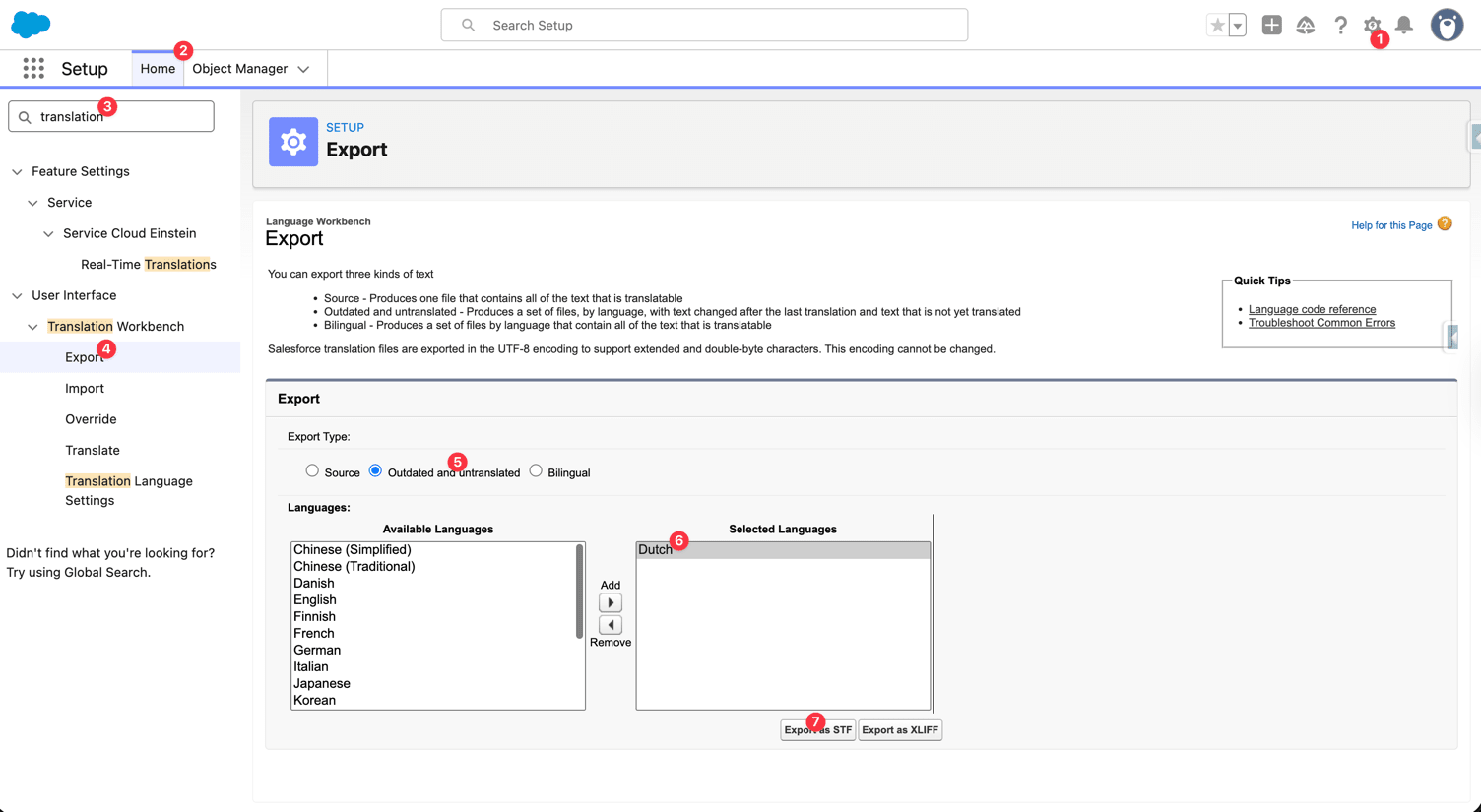
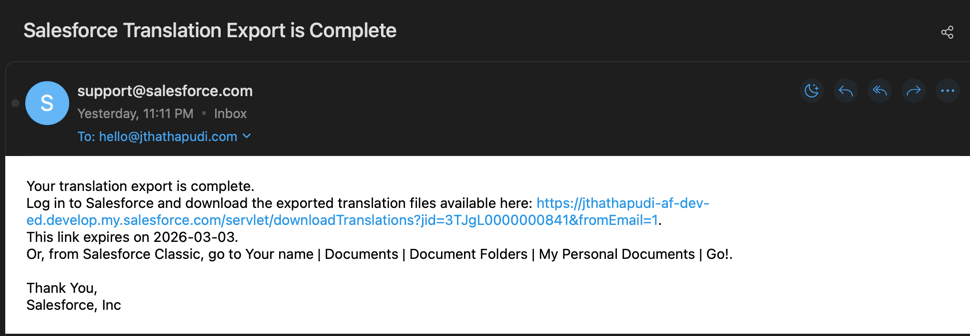
I exported STF files from my developer edition’s Translation Workbench. The path is: Setup → Translation Workbench → Export → Bilingual → Select ‘Dutch’ → Click ‘Export’. After a few minutes, Salesforce sends you an email with a link to download the STF as a ZIP file.
Here’s what the top of a Bilingual export looks like — this one was Dutch (nl_NL), over 24,000 lines:
# Language: Dutch
Language code: nl_NL
Type: Bilingual
Translation type: Metadata

------------------TRANSLATED-------------------

# KEY	LABEL	TRANSLATION	OUT OF DATE

AddressCountry.AD	Andorra	Andorra	-
AddressCountry.NL	Netherlands	Nederland	-
AddressCountry.DE	Germany	Duitsland	-

...

------------------OUTDATED AND UNTRANSLATED-----------------

# KEY	LABEL

ButtonOrLink.Account.Billing	Billing
CustomField.Competitor_Analysis__c.Competitive_Advantage.FieldLabel	Competitive Advantage
CustomField.Competitor_Analysis__c.Threat_Level.FieldLabel	Threat Level
The file has two sections: TRANSLATED (4 columns — key, label, translation, out-of-date indicator) and OUTDATED AND UNTRANSLATED (2 columns — key, label). It’s the untranslated section where you add your translations.
I uploaded this to Cowork and explained what I needed:
“These are Salesforce Translation Workbench export files in STF format. I need to clean them up before sharing with a translation team. Remove all managed package items, remove unsupported elements like Flow TextTemplates, and flag anything that looks problematic. Also generate an audit report in Excel documenting every change you make — what was removed and why — and keep updating it as we go through the process.”
Cowork understood the STF format immediately. It recognized the tab-delimited structure, the key format (MetadataType.Object.ApiName.SubType), and the difference between the two export types — “Bilingual” (4-column review file) and “Outdated and untranslated” (2-column import file).
I didn’t have to explain the format. That surprised me.
Step 2: STF Export and Cleanup
The first real task was cleaning up the exported STF files. A raw export from Translation Workbench includes everything — managed package items from installed apps, metadata types that Translation Workbench can’t actually import, and elements from flows that Salesforce explicitly doesn’t support.
Here’s what needed to be removed:
Managed package items — keys from installed packages like cdpactvstrgptnr__ (CDP Activation Partner). Even in a developer edition, you’ll see managed package keys mixed in with your custom metadata. These have their own translation management and shouldn’t be in your custom translation file.
For example, my export had keys like:
CustomField.cdpactvstrgptnr__ActivationPlatformCredential__c.cdpactvstrgptnr__ClientId.FieldLabel
CustomField.cdpactvstrgptnr__ActivationPlatformCredential__c.cdpactvstrgptnr__ClientSecret.FieldLabel
Those don’t belong in your translation import.
Unsupported Flow TextTemplates — Salesforce’s own documentation states that Translation Workbench doesn’t support the Text Template element in Autolaunched Flows or Screen Flows. But the export includes them anyway. During import, you get:
Translation Workbench doesn't support the Text Template element in flows of type Autolaunched Flow.
In my dev org, any Flow TextTemplate keys in the export would need to be removed before import. They look like:
Flow.AutoLaunchedFlow..1.TextTemplate..FieldLabel
You can spot them by the TextTemplate segment in the key. Cowork caught every one of them.
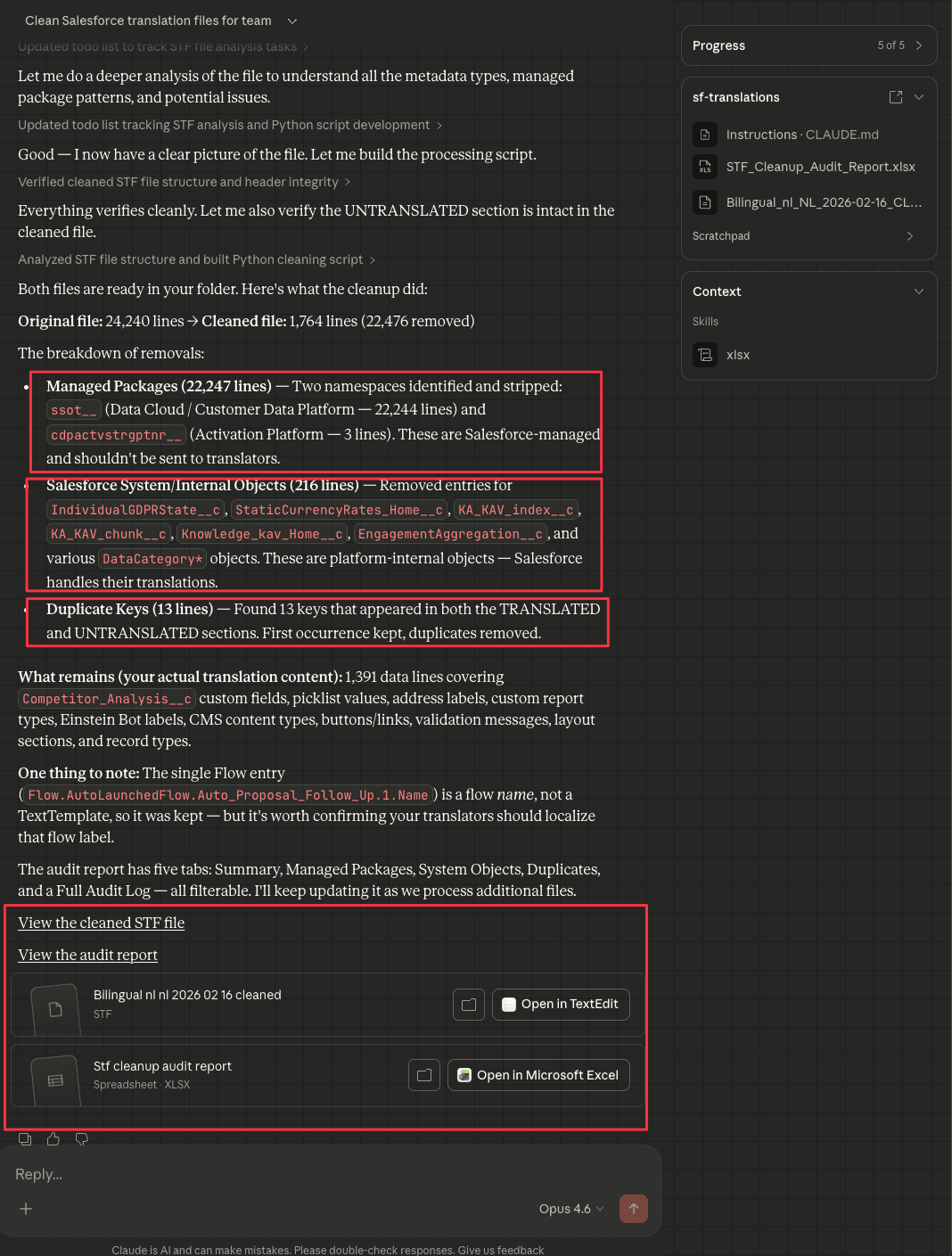
I gave Cowork the STF file and asked it to identify and remove all managed package items and unsupported TextTemplate keys.
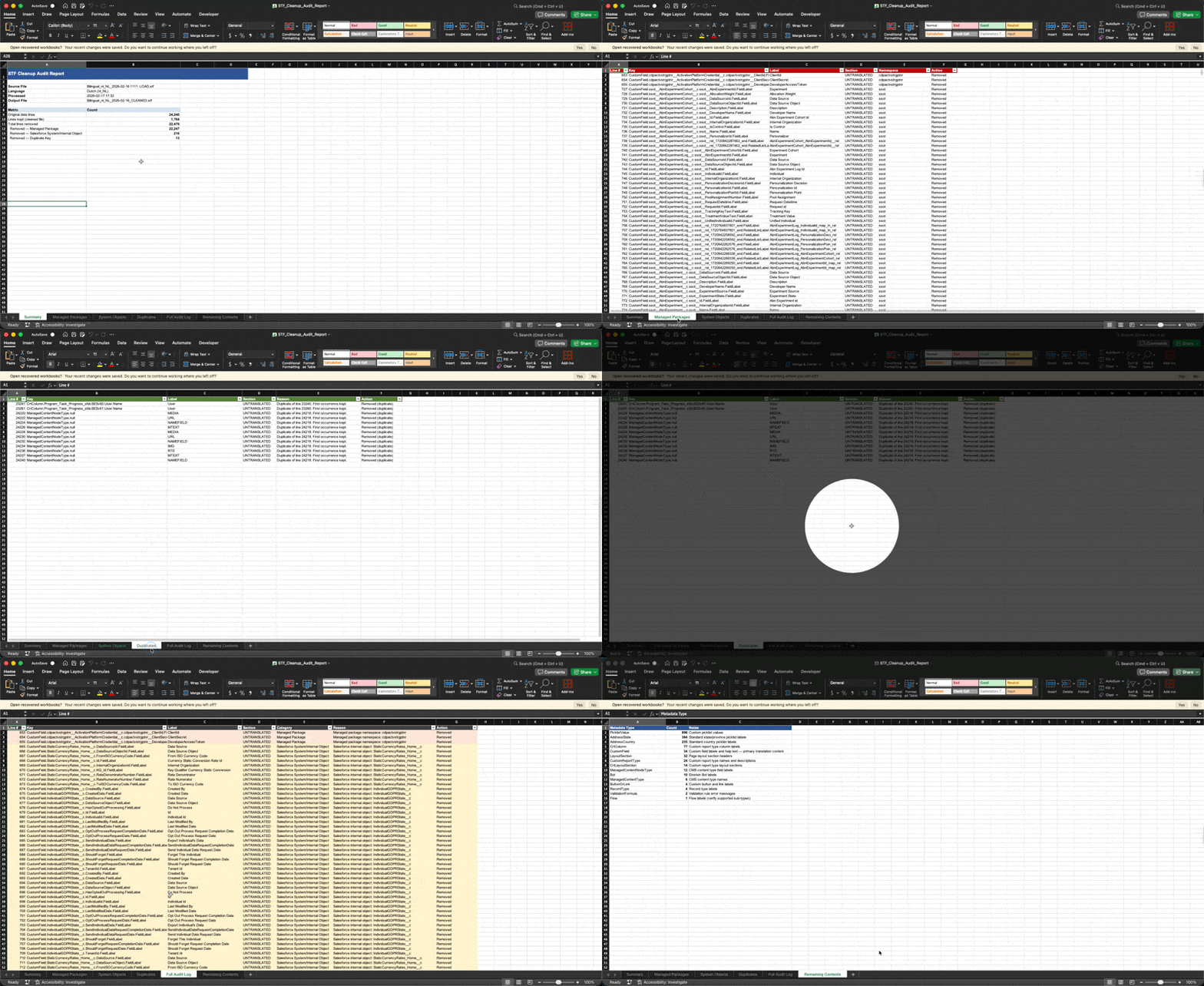
It processed the file and produced a cleaned version along with an audit report Excel — documenting every key it removed, grouped by reason (managed package, unsupported TextTemplate, etc.), so the person doing the load has a clear trail. It also flagged items it wasn’t sure about — keys that looked like they might be managed but didn’t have a clear namespace prefix. That level of caution was actually helpful.
The cleanup that would normally take a couple of hours of careful line-by-line review happened in minutes. And the audit report meant I didn’t have to track the changes myself.
Step 3: Creating the Excel for Business Translation
Once the STF cleanup is done, the next step is converting it into an Excel that the business team can work with. Nobody’s going to fill in translations in a tab-delimited text file.
I asked Cowork to create an Excel from the cleaned STF. The structure mirrors the STF format — Key, Label, and an empty Translation column for the business team to fill in.
The Excel was clean and ready to share — no reformatting needed.
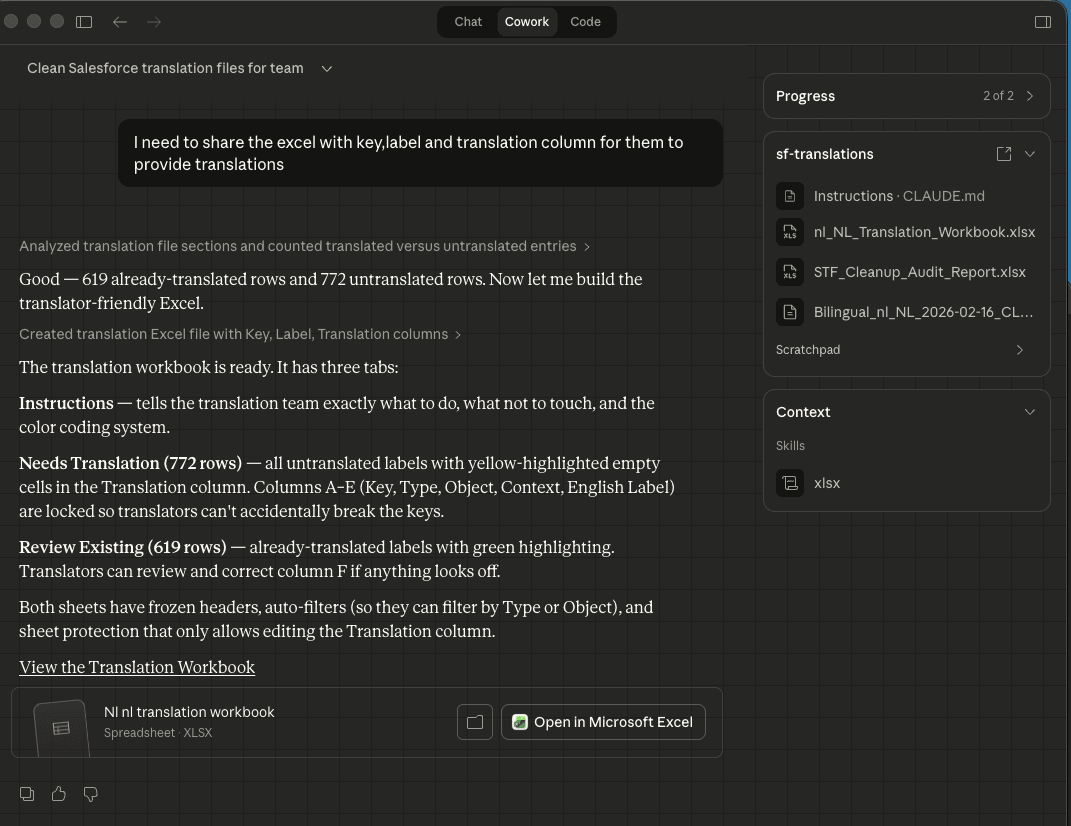
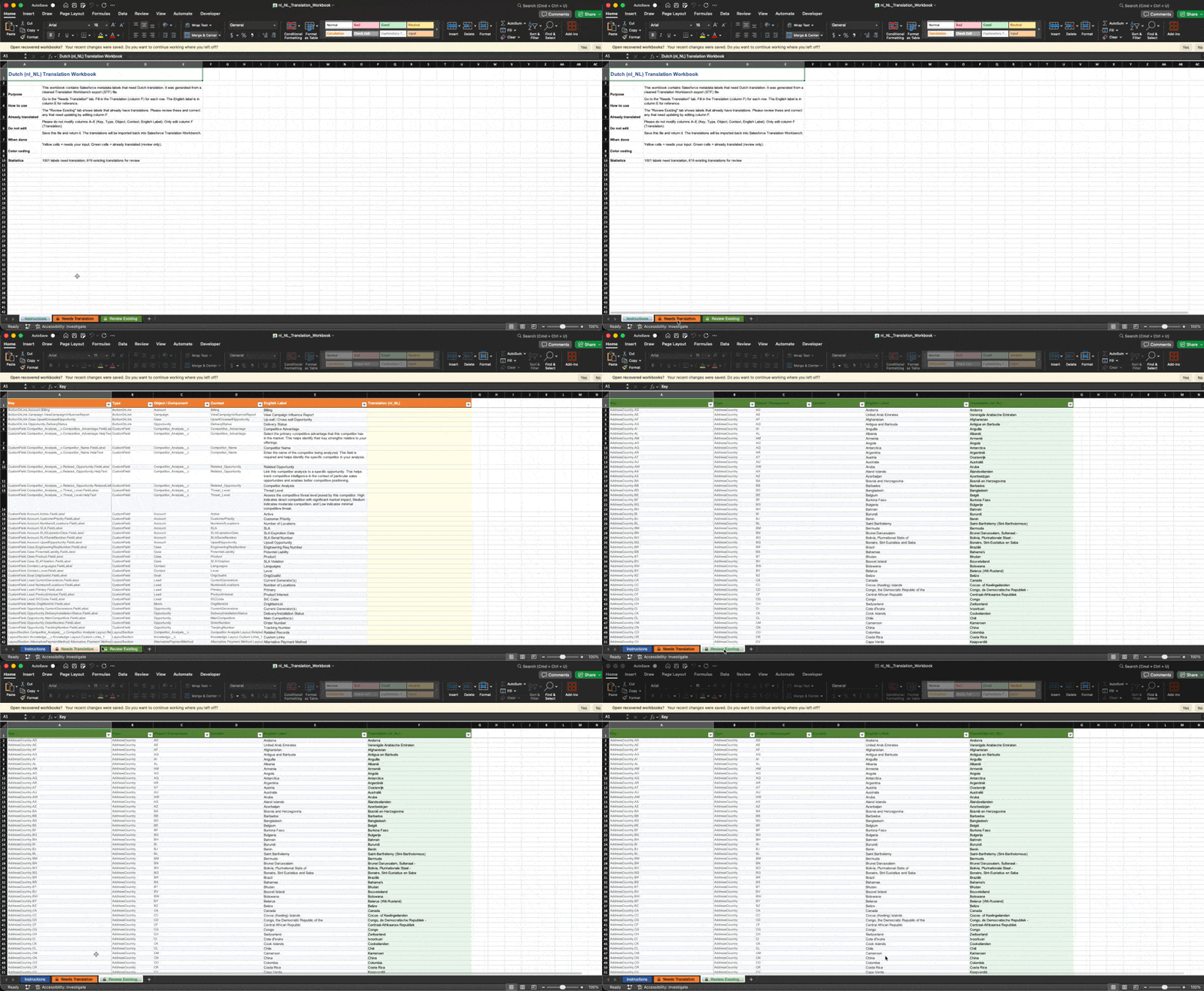
This Excel goes to the business team. They fill in the Dutch translations and send it back. Once that’s done, you move to the next step — creating the import file.
Step 4: Creating the Import STF from Translated Excel
After preparing a translated Excel spreadsheet with Dutch values, I needed to create the import STF file. This is where the format gets tricky.
The import STF needs:
- A specific header with language code and translation type
- Tab-delimited columns: KEY, then TRANSLATION
- Proper escaping of tabs (
\t), newlines (\n), and carriage returns (\r) within translation values - No duplicate keys
- Only keys that match the correct translation type (“Metadata” vs. “Managed”)
I uploaded the translated Excel and the original cleaned STF to Cowork and asked it to generate the import file.
It created the STF with the correct header:
# Language: Dutch
Language code: nl_NL
Type: Bilingual
Translation type: Metadata
And populated it with the translated values, matching keys from the export to values from the Excel.
The first version wasn’t perfect — there were a few keys where the Excel had slightly different formatting than the STF expected. But Cowork caught most of the alignment issues on its own.
Step 5: Error Log Analysis and Fix
This is where Cowork earned its keep.
To import, the path is: Setup → Translation Workbench → Import → Upload STF → Click ‘Import’. Salesforce sends you an email with the result — success or failure, sometimes with a log file attached.
After importing the generated STF into my dev org, I got errors. That’s expected — it always happens. The question was whether Cowork could help me fix them faster than doing it manually.
I copied the error log from Translation Workbench and uploaded it to Cowork.
Here’s a sample of what the errors looked like:
Maximum character limit (40) for CustomField translation exceeded in line:
CustomField.Competitor_Analysis__c.Competitive_Advantage.FieldLabel
Each error type needs a different fix:
- Character limit exceeded → truncate the translation or find a shorter Dutch equivalent
I gave Cowork the error log and asked: “Fix these errors in the import file and tell me what you changed.”
It parsed every error, identified the affected lines, applied the correct fix for each error type, and generated a new version of the import file. It also updated the audit report with what it changed and why.
The conversational part was key. When a fix wasn’t obvious, I could discuss it with Cowork and try different approaches.
Over multiple iterations, the cycle looked like: import → copy error log → give to Cowork → get fixed file → re-import. Each round took minutes instead of the hour-plus it normally takes.
Common Translation Workbench Errors and How Cowork Handled Them
Here’s a quick reference of the errors I ran into and what Cowork did to fix them:
| Error | Cause | What Cowork Did |
|---|---|---|
Translation Workbench doesn’t support the Text Template element in flows of type Autolaunched Flow. | Salesforce doesn’t support translating TextTemplate elements in Autolaunched or Screen Flows — but the export includes them anyway | Identified all TextTemplate keys by pattern and removed them from the import file |
Maximum character limit (40) for CustomField translation exceeded | The translated label exceeds 40 characters for a CustomField FieldLabel | Flagged the affected keys and suggested shorter alternatives |
Duplicate key exists in import file, please re-export. | Same key appears twice in the import file — common with ManagedContentNodeType.null and ForecastingItem fields | Found and removed the duplicate entries |
Invalid key (but the key looks correct) | The metadata was deleted, deactivated, or changed in the target org after the STF was exported — the key no longer matches anything in the org | Cross-referenced the keys against the audit report and flagged them for removal. This is common when deployments happen between export and import |
Most of these errors, Cowork handled automatically after I uploaded the error log.
Final Thoughts
Cowork didn’t eliminate the Salesforce translation workflow. The STF format is still painful. Translation Workbench still throws errors one batch at a time. You still need multiple iterations across environments.
But every single step got faster. The STF cleanup went from hours to minutes. The audit reports came out structured and thorough. The error-fix-reimport cycle went from an hour per iteration to a few minutes of conversation.
The part that surprised me most was the whole loop. It wasn’t just one task that worked — it was the entire conversational workflow. Cleanup, audit, import file creation, error parsing, and fixing. Each step fed naturally into the next.
A few things to keep in mind:
- Always review generated files before importing
- Keep your original exports as a backup — Cowork works on copies
- The audit report is your documentation trail — save every version
- Some Salesforce-specific issues still need human escalation
If you deal with Salesforce translations, I’d recommend trying this in a developer edition org yourself. The setup takes five minutes, and you’ll know pretty quickly whether it fits your workflow.
Have you used Cowork or any AI tool for Salesforce admin tasks? I’d love to hear what worked and what didn’t — let me know in the comments.
Have questions or want to share your experience? Reach out on LinkedIn or X/Twitter.
Want a detailed video walkthrough of this workflow? Let me know in the comments at my newsletter.